Adding eSign to a Digital Journey
- In FintechOS Studio, create a custom journey to define a button to call the eSign automation processor. For information on how to create a custom journey, see FintechOS Studio User Manual, section Creating Custom Journeys.
- Go to the form driven journey or form step on which you want to add the button to call the eSign automation processor.
- Click the Advanced tab.
- Click the After Events tab (for Steps, it is displayed by default, being the only tab available).
- In the JavaScript field, provide the following code:Copy
// For Ecosystem SysPack 2.5.0 and later, use:
var dfpHelper = ebs.importClientScript('FTOS.ECOS.Utils');

// Prior to Ecosystem SysPack 2.5.0, use:
// var dfpHelper = ebs.importClientScript('FTOS.DFP');

//call ESign component custom form
var componentName = "FTOS_DFP_ESign"; //name of the component var recordId = ebs.getCurrentEntityId();
var fileExists = true; //"document" argument = source entity file attribute.It only contains the true value considering that the document already exists
var p = {};
p.flowSettingsName = formData.model.FlowSettings;
p.processorSettingsType = 'ESign';
ebs.callActionByName("FTOS_DFP_FlowProcessorSettingsByType", p, function(e) {
    var processorSettingsName = e.UIResult.Data.ProcessorSettingsName; //configuration of the component
    dfpHelper.loadComponent(componentName, processorSettingsName, recordId, fileExists);
}); - Click Save and Close to save your form driven journey (If you're in a form step, save the step, then save the form driven journey)
This is what the customers see in the user journey:

After they click Finish, they will be prompted to accept request for signature.
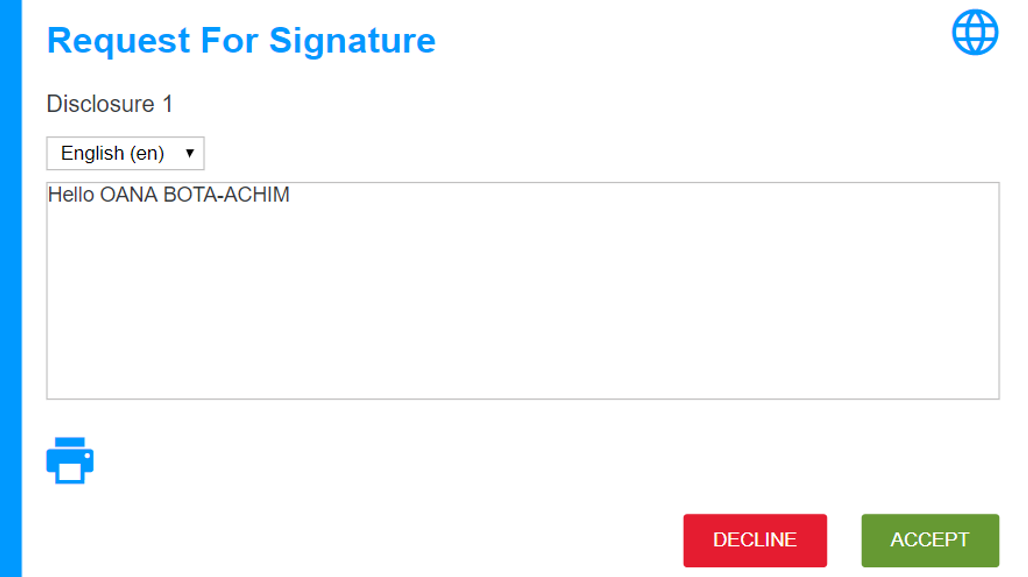
The contract/agreement .pdf will be displayed. On the last page of the document, the customers will have to sign the document by clicking the button displayed next to the Account Holder Signature.
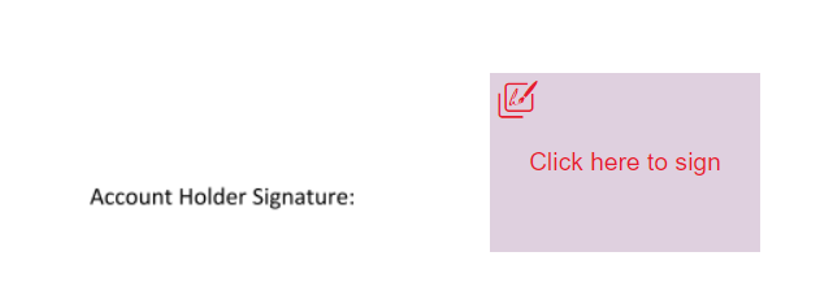
Once they sign it, the customer will have to accept the terms and agreements.
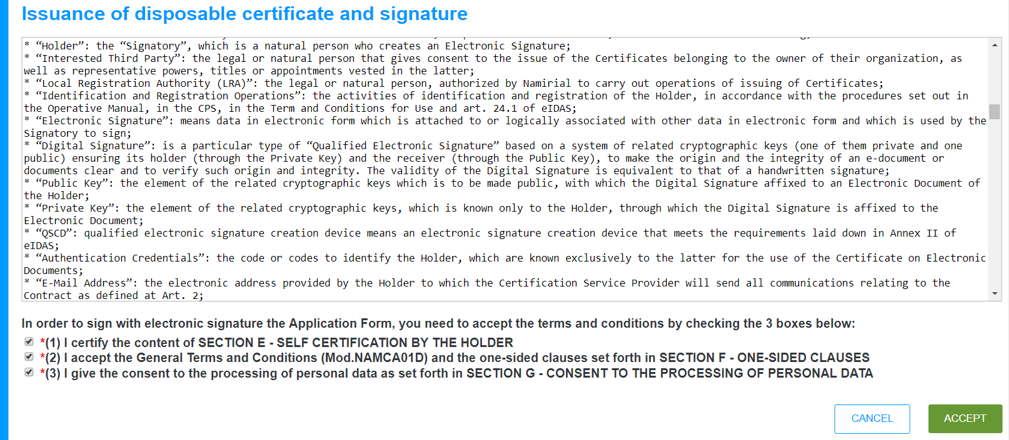
Once they’ve given their consent for electronic signature and data processing they will have to click Accept. They will receive an OTP code via SMS.
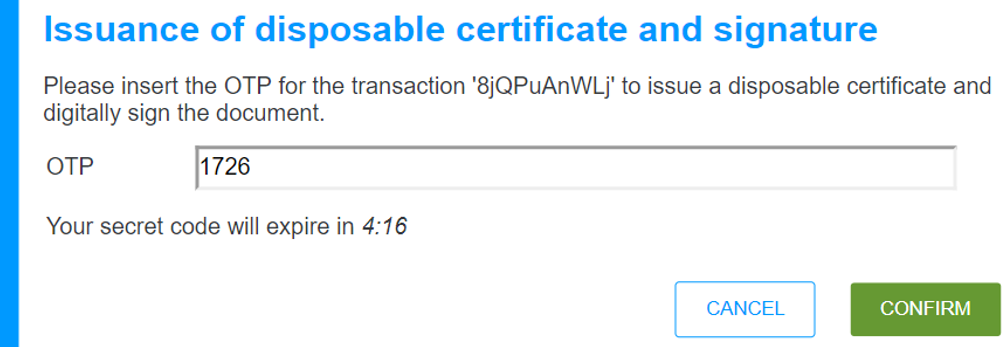
Once they provide the received OTP code within the code validity timeframe and click Confirm, the document is successfully e-signed and returned to the FintechOS platform in real-time.