Set Up an Operator Form
-
Create a new entity for applications, for example, FTOS_Test_Operator_Applicant. Add the attributes needed for your journey. Picture OCR and Selfie are usually displayed on the Operator page, so they are recommended. (For details on how to create an entity, see Business Entities; for details on how to add attributes, see Add Attributes).

-
Create a new entity, FTOS_Test_Operator, and add the following attributes: videoCallResult, applicandId, and operatorType.

-
Extend entity and add virtual attributes (for details, see Extend platform data entities with transient data entities).
-
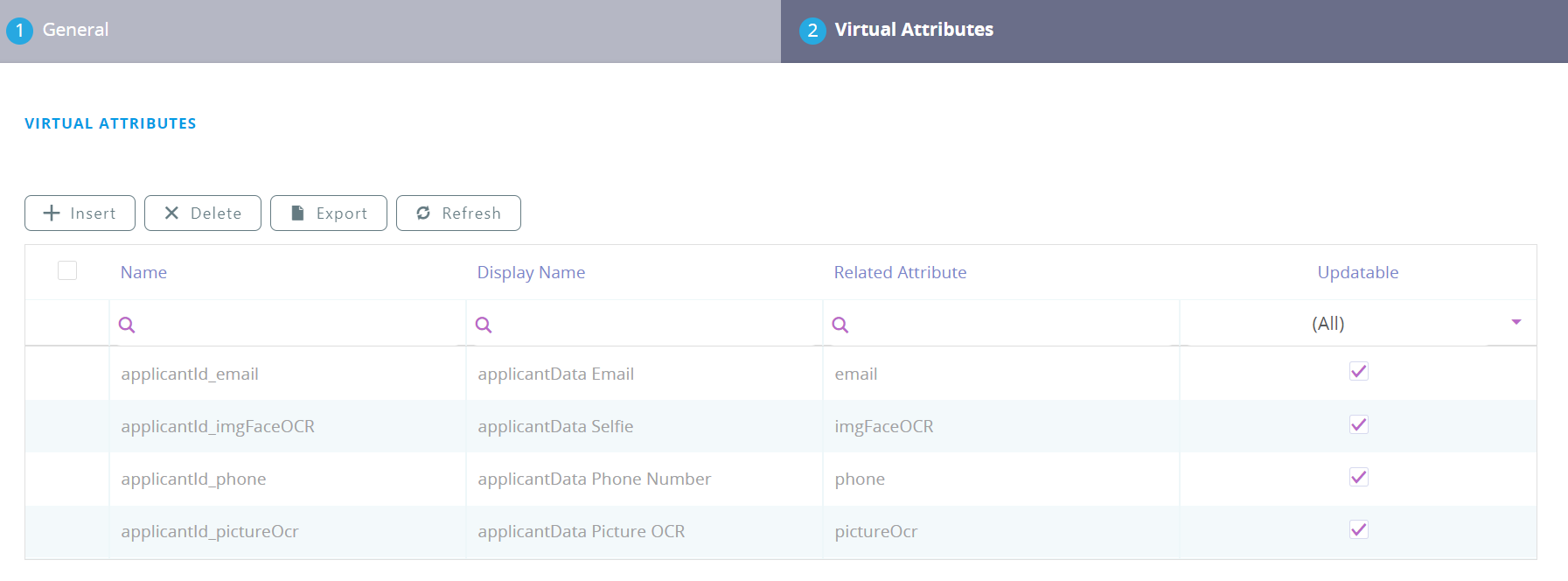
-
Create FTOS_Test_Operator_Client form driven flow on the FTOS_Test_Operator entity which will collect the relevant data. For details on how to create a form driven flow, see Form Driven Flows). For the video step, add the following code in the After Section Save section.
Copy// For Ecosystem SysPack 2.5.0 and later, use:
var dfpHelper = ebs.importClientScript('FTOS.ECOS.Utils');
// Prior to Ecosystem SysPack 2.5.0, use:
// var dfpHelper = ebs.importClientScript('FTOS.DFP');
ebs.removeFormEditButton('ebsContainerContent');
context.stopNextNavigation = true;
var componentName = 'FTOS_DFP_VideoStreaming';
var params = {};
params.flowSettingsName = formData.FlowSettings;
params.processorSettingsType = 'VideoStreaming';
params.processorSettingsName = 'FTOS_Test_Operator_VideoComponent';
ebs.callActionByNameAsync("FTOS_DFP_FlowProcessorSettingsByType", params).then(function(f)
{
console.log(f);
var processorSettingsId = f.UIResult.Data.ProcessorSettingsId;
dfpHelper.loadComponent(componentName, processorSettingsId, formData.id, false);
}); -
Flow settings will be set on the form driven flow's Before Events section:
formData.FlowSettings = "FTOS_Test_Operator";. Example of Flow settings:Copy{
"DestinationEntityName": "FTOS_Test_Operator_Applicant",
"SourceEntityName": "FTOS_Test_Operator",
"SourceLookupDestinationName": "applicantId",
"maskNextStepURLSuccess": { "entity":"FTOS_Test_Operator", "form": "FTOS_Test_Operator_Client", "section": "Finished" },
"maskNextStepURLFail": { "entity":"FTOS_Test_Operator", "form": "FTOS_Test_Operator_Client", "section": "Finished" },
"ContextForm" : "FTOS_Test_Operator",
"QueueParameters":
[
{
"ParamName": "Name",
"ParamValue": "QueueOperator"
}
]
} -
Add
QueueOperatorto your queues list, then add the new queue to all operators that have access to this queue: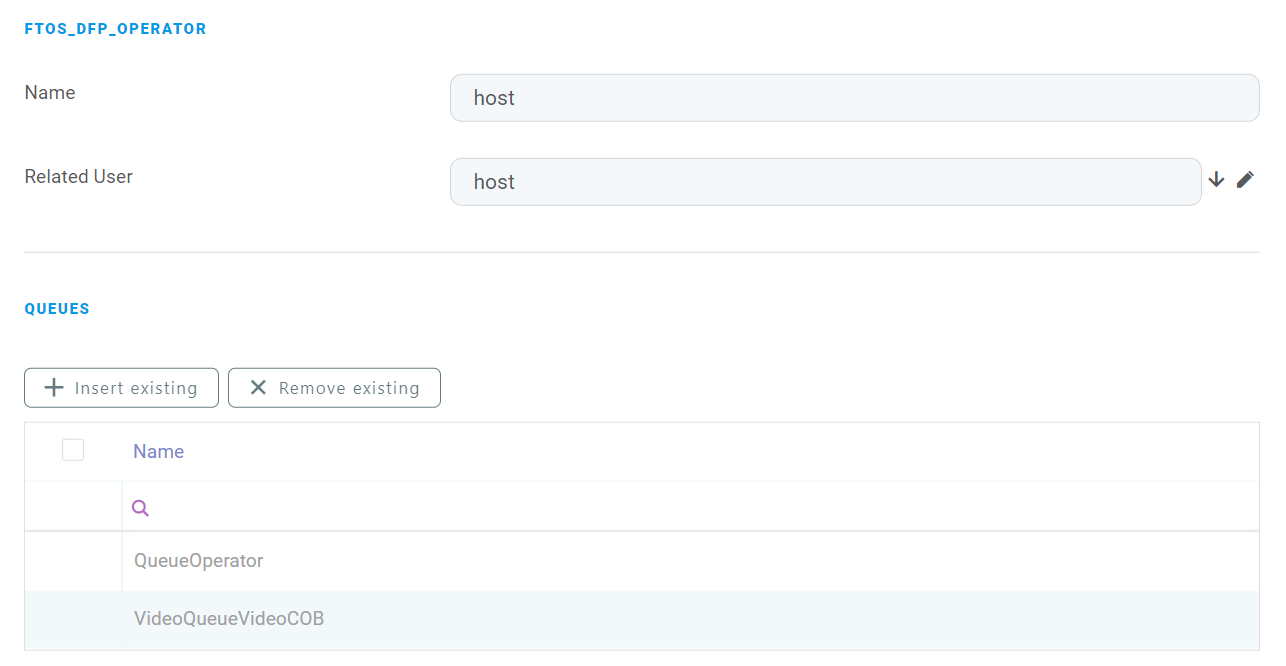
-
Create the FTOS_Test_Operator form driven flow on the FTOS_Test_Operator entity and set it as default and default for edit.
 Example: Use VideoComponent for the Operator Journey
  formScope.videoTokBoxComp = new VideoComponent({
      sessionContainer: document.getElementById("videoOperatorContainer"),
      sessionConfig: {
        isOperator: true,
        connectData: {
          apiKey: formScope.videoTokBoxCredentials.apiKey,
          sessionId: formScope.videoTokBoxCredentials.sessionId,
          token: formScope.videoTokBoxCredentials.token,
          tokenId: formScope.videoTokBoxCredentials.tokenId,
        },
      },
      sessionConnectToken: connectToken,
      externalDependenciesLocation: "/custom-on-demand",
      backgroundFilters: {
        isFeatureEnabled: true,
        autorun: true,
        imagePath: "custom/assets/video-bg.jpg", // path for dev mode
        defaultType: "blur",
      },
    });
    formScope.videoTokBoxComp.events.addEventListener('stateChange', function(event){
        console.log(event);
    });

    formScope.videoTokBoxComp.events.addEventListener('publisherChange', function(event){
        console.log(event);
    });

    formScope.videoTokBoxComp.events.addEventListener('subscriberChange', function(event){
        console.log(event);
    });
formScope.videoTokBoxComp = new OperatorComponent({
      container: "videoOperatorContainer",
      videoTokBoxCredentials: {
          apiKey: formScope.videoTokBoxCredentials.apiKey,
          sessionId: formScope.videoTokBoxCredentials.sessionId,
          token: formScope.videoTokBoxCredentials.token,
          tokenId: formScope.videoTokBoxCredentials.tokenId,
      },
    });
formScope.videoTokBoxComp.initSession();
In order to obtain credentials, you need to call the FTOS_DFP_VideoStreaming_OperatorCredentials endpoint. Credentials are saved into the FTOS_DFP_QueueItem entity, so in case of page reload, you won’t try to obtain new credentials.
Example: Use/Toggle Filters
// filters
$("#videoFilterSwitch").on("click", function(){
    formScope.videoTokBoxComp.toggleFilters();
    deactivateButtons();
    setTimeout(updateFilters, 3000);
});

$("#videoTypeFilter").on("click", function(){
    formScope.videoTokBoxComp.toggleFilterType();
    deactivateButtons();
    setTimeout(updateFilters, 3000);
});

function deactivateButtons(){
    document.getElementById("videoFilterSwitch").disabled = true;
    document.getElementById("videoTypeFilter").disabled = true;
}

function activateButtons(){
    document.getElementById("videoFilterSwitch").disabled = false;
    document.getElementById("videoTypeFilter").disabled = false;
}

function updateFilters(){
    if (typeof formScope.videoTokBoxComp.hasFilters !== undefined){
        var filters = formScope.videoTokBoxComp.hasFilter();
        if (filters.filter && filters.filter.type){
            document.getElementById("video-filters").innerHTML = "Your filter type is: " + filters.filter.type;
        } else {
            document.getElementById("video-filters").innerHTML = "You currently do not have video filters.";
        }
        activateButtons();
    }
}// set logLevel to "error" to log only errors
var logLevel = "debug";
if (typeof dcs !== 'undefined'){
var loggingService = dcs.common.EventsCommunicationService.getInstance();
loggingService.listenForEvents(saveSDKLogs);
}
function saveSDKLogs(data){
// save logs part
if (data.load.message === 'Init TokBox Video Call'){
// save browser info in entity: send correct id
data.id = ebs.getFormData().id;
ebs.callActionByNameAsync("FTOS_DFP_SaveInfo_Endpoint", data);
}
if (data.load.type !== 'error' && logLevel === 'error') {
return;
};
ebs.callActionByNameAsync("FTOS_DFP_SDK_Log_Endpoint", data);
}// save form data
function saveForm(){
var formData = ebs.getFormData();
ebs.saveEditForm("ebsContainerContent", function () {
p.passed = true;
p.flowSettingsName = formData.FlowSettings;
p.queueItemId = formScope.queueItemId;
p.videoCredentials = formScope.videoTokBoxCredentials;
console.log("parameters: ", p);
updateOperator();
});
}
// update
function updateOperator(){
ebs.callActionByNameAsync("FTOS_OperatorFailedPassed", p).then(function () {
endVideo();
});
}
// close video call client and redirect
function endVideo(){
var parameters = {};
parameters.customActionName = "FTOS_VideoQueue_CurentQueueItems";
ebs.callActionByNameAsync(
"FTOS_GetCustomActionByName_Endpoint",
{
parameters: parameters,
}).then(
function (result) {
console.log("saved form: ", result);
if (result.UIResult.Data.results.length > 0) {
var urlBase = ebs.getBaseUrl();
var customActionId = result.UIResult.Data.results[0].a_customActionid;
var customActionAddress = urlBase + "/Main#/customaction/" + customActionId;
try {
formScope.videoTokBoxComp.closeCall();
} catch (e) {
console.log("Video didn't close: ", e);
}
ebs.goToUrl(customActionAddress);
}
}
);
}
function reloadGrids(type) {
    //notify client on new queue item
    var grid = $("#allocatedCall" + type).dxDataGrid("instance");
    if (!grid) {
        return;
    }

    var mostRecentItem = grid.getTopVisibleRowData();
    var localStorageKey = "topQueueItem";
    var audio = new Audio("custom/notification.mp3");

    updateStatusText();
    updateQueueText();

    if (
        $("#allocatedCall" + type).hasClass("dx-widget") &&
        $("#currentQueueItems" + type).hasClass("dx-widget")
    ) {
        reloadAll();
    }

    if (!(mostRecentItem && mostRecentItem.Q_FTOS_DFP_QueueItemid)) {
        return;
    }

    var originalValue = localStorage.getItem(localStorageKey);
    if (originalValue) {
        if (originalValue == mostRecentItem.Q_FTOS_DFP_QueueItemid) {
            return;
        }

        localStorage.setItem(
            localStorageKey,
            mostRecentItem.Q_FTOS_DFP_QueueItemid
        );
        audio.play();
    } else {
        localStorage.setItem(
            localStorageKey,
            mostRecentItem.Q_FTOS_DFP_QueueItemid
        );
        audio.play();
    }
}