Using the Document in the Form Driven Flow
Calling the generation of a document is done by:
- Open FintechOS Studio.
- Click the Main Menu icon at the top left corner.
- Click Digital Journey > Form driven Flow. The Form Driven Flow List page is displayed.
- Search for the form driven flow where to use the document.
- Click the Actions tab.
- In the grid, click the Insert button to add a new action.
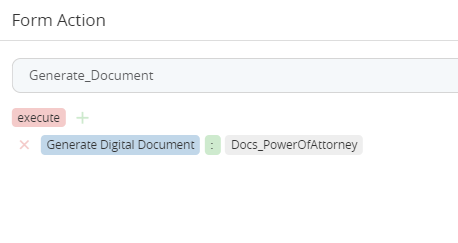
- Click the Save button on the right-hand corner of the page.
- Navigate to the step where the action will take place. Select the step from the Steps tab.
- Navigate to the UI tab of a particular step. Open the UI designer.
- Add a button in the layout. Its configurations open in the right-hand part of the screen.
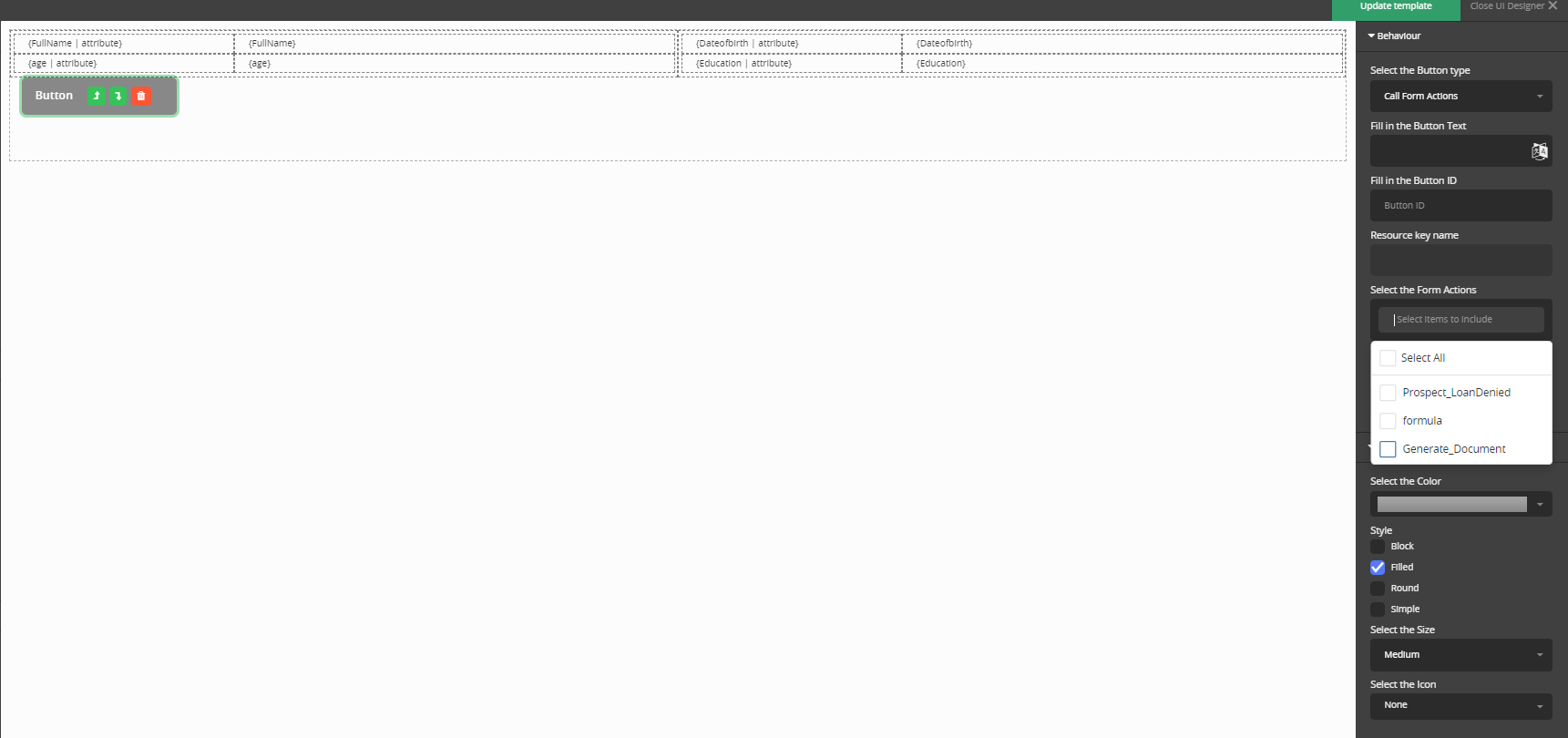
- Select the type call form action and in the Select from action field tick the action created earlier which generates the document.
- Click the Apply changes, then click Update template, and lastly Save and close.