Installing eSign
Install Server Configuration
First, make sure you have the right application dependencies installed and configured.
In order to configure the processors to make the requests correctly to DCS, you must add in web.config / FTOS Vault (Portal / B2C - depending where the server side script is executing) the following keys:
<add key="FTOSServicesESignEndpoint" value="get-the-url-from-portal"/>
<add key="FTOSServicesESignAppId" value="the subscription key"/>
<add key="DDMESawToken" value="ApiToken"/>
Install Application Configuration
Log in to FintechOS Studio:
1 Import Packs
Import in Deployment Package the packs from the Pack received. The 08 eSign_Processor - vxx.x.xxxx.zip pack contains the services configuration model and scripts for ESign.
2 Modify data
Import the Pkg08_ESignProcessor_01_FlowSetting_Example_vx.x.xml.zip from
..\02 ConfigurationDataDeploymentPackages form DevOps -> Configuration data deployment package.
Log in to FintechOS Studio:
For version smaller than v21.1.x, the Flow Settings menu is in the FintechOS Portal: Digital Flow Processing -> Flow Settings.
3 ESign Configuration
For the configuration of Automation Blocks, select Digital Flow Processing > Flow Settings.
In the “Example Flow Setting Esign” you can find an eSign setting and mapping examples. You can copy the examples and modify them.
Processor Settings fields
Settings
| Key | Settings |
|---|---|
| DestinationEntityName | Name of the destination entity. |
| SourceEntity Name |
Name of the source entity; Needed only if the Face Recognition process starts from an edit form; if so, the entity name is needed to update the business status after the Face Recognition process ends. |
| SourceLookpDestination | Name of the lookup key from SourceEntityName that points to DestinationEntityName. |
| fileAttributeName |
The name of the attribute on the entity which will store the file to be signed. |
| MaxRetry | The maximum number of signing attempts. |
| signedDocumentName | The name of the attribute which will store the signed file. |
| "WebhookUrl" | How to Get Envelope Status Changes Notifications Using Webhooks |
| "WebhookStatusUrl" | How to Get Envelope Status Changes Notifications Using Webhooks |
| order | The order of the signatures from the workflow. They can be sent in parallel. |
| signatureTag | The tag from the pdf that will be replaced with the signature field, E.g.: "#esaw#" |
| signatureTypeTemplate | The signature type. This setting cannot be null, but can be an empty string if there is no specific signature type required. |
| fileToBeSignedName | The name of the file that needs to be signed. |
| signatureType |
The type of the signature:
|
| ClearSignatureString |
|
| automaticProfile |
Copy
OR Copy
- See details here 5 ESign Configuration for Automatic Signature Profile |
|
OTP_SMS_S howNoInSignature
|
true : will display the phone number on the signature. false : will not display the phone number on the signature. |
| languageCode | The code of the language used for the signature. |
| The email address of the person that will sign. | |
| phoneMobile |
The Phone Number of the person that will sign. - If set, the signature won’t ask for your phone number, will send the OTP to this number. - If not set (send null or does not exist in list), the recipient will be asked to enter the phone number where the OTP will be sent. |
| firstName | The first name of the person that will sign. |
| lastName | The last name of the person that will sign. |
| countryResidence | The country code where the customer has residence. Not mandatory for OTP Sign. |
| documentType | The type of document used for signing (“CI”) . Not mandatory for OTP Sign. |
| documentIssuedBy | The institution that issued the ID/ Pass. Not mandatory for OTP Sign. |
| socialSecurityNumber | The Social Security Number of the client. Not mandatory for OTP Sign. |
| documentExpiryDate | The expiration date of the ID/ Pass. Not mandatory for OTP Sign. |
| documentIssuedOn |
The issue date of the ID/ Pass. Not mandatory for OTP Sign. |
| documentNumber | The document number of the ID. Not mandatory for OTP Sign. |
| smsText | The text that the client will receive. Not mandatory for OTP Sign. |
| clickMsg |
The message displayed to the person responsible with signing the document. Not mandatory for OTP Sign. |
| maskNextStepURLSuccess | Information used to create the link loaded after the Face Recognition process ends successfully. |
| entity | Entity name. |
| form | Form name. |
| section | Optional field, can be either the section number or the section name. |
| maskNextStepURLFail | Information used to create the link loaded after the OCR process ends with errors. |
| entity | Entity name. |
| form | Form name. |
| section | Optional field, can be either the section number or the section name. |
| businessStatusSuccess | Business status name applied to SourceEntity if Face Recognition process ends successfully; Needed only if the Face Recognition process runs on form in edit mode. |
| businessStatusFail | Business status name applied to SourceEntity if Face Recognition process ends with errors; Needed only if the Face Recognition process runs on form in edit mode. |
Mappings
| Key | Settings |
|---|---|
| FileAttributeName | |
| Map | Area of actual mappings. |
| key | Name of the field as received from Face Recognition Process. |
| value | Name of the field as declared in the entity where the result is saved. |
ESign Load component examples
 Example Flow Setting: Javascript code - After Events:
var dfpHelper = ebs.importClientScript('FTOS.DFP');
var componentName = "FTOS_DFP_ESign"; //name of the component
var recordId = ebs.getCurrentEntityId();
var fileExists = true; //"documentToBeSigned" argument = source entity file attribute
var flowSettingsName = formData.FlowSettings;
var p = {};
p.flowSettingsName = formData.FlowSettings;
p.processorSettingsType = 'ESign';
p.processorSettingsName = 'ESign_Example';
ebs.callActionByName("FTOS_DFP_FlowProcessorSettingsByType", p, function(e)
{
var processorSettingsId = e.UIResult.Data.ProcessorSettingsId;
dfpHelper.loadComponent(componentName, processorSettingsId, recordId, fileExists);
});
The Result of ESign execution will be saved in this entity: FTOS_DFP_ESign.
4 ESign Download Configuration
For the configuration of Esign, select Digital Flow Processing -> Flow Settings.
In “Example Flow Setting Esign” you can find a Esign setting and mapping examples. You can copy the examples and modify them.
Processor Settings fields
Settings
| Key | Settings |
|---|---|
| EntityName | The entity that will have the file saved to. |
| ESignFlowSettingName | The name of the Flow Setting used to host the processor for the eSign request. |
| ESignProcessorName | The name of the processor setting used to send sign request. |
| maskNextStepURLSuccess | Copy The step that will be deisplayed if the download is successful. |
| maskNextStepURLFail | Copy The step that will be displayed if the download has failed. |
Mappings
| Key | Settings |
|---|---|
| DownloadFilesMapping | The list of the files that will be downloaded. |
| FileAttributeName | Where will the file be downloaded to, the name of the attribute. |
| FileName | The name that will the downloaded file will have after download. |
ESign Load component examples
Example Flow Setting: Javascript code - After Events:var dfpHelper = ebs.importClientScript('FTOS.DFP');
var componentName = "FTOS_DFP_ESign_Download"; //name of the component
var recordId = ebs.getCurrentEntityId();
var fileExists = true;
var flowSettingsName = formData.FlowSettings;
var p = {};
p.flowSettingsName = formData.FlowSettings;
p.processorSettingsType = 'ESign';
var businessStatusName = ebs.getFormData().model.businessStatus.name;
if (businessStatusName == "Documents Signed") {
p.processorSettingsName = 'ESign_Download_Documents';
}
else if (businessStatusName == "Contract Signed") {
p.processorSettingsName = 'ESign_Download_Documents';
}
console.log("p.processorSettingsName "+ p.processorSettingsName);
if (p.processorSettingsName) {
ebs.callActionByName("FTOS_DFP_FlowProcessorSettingsByType", p, function (e) {
var processorSettingsId = e.UIResult.Data.ProcessorSettingsId;
dfpHelper.loadComponent(componentName, processorSettingsId, recordId, fileExists);
});
}
5 ESign Configuration for Automatic Signature Profile
The automatic signature has a key value that must be set, this key value is the form the Namirial Account that has activated the automatic signature option.
This key value is inserted in the table: FTOS_DFP_ESignKey
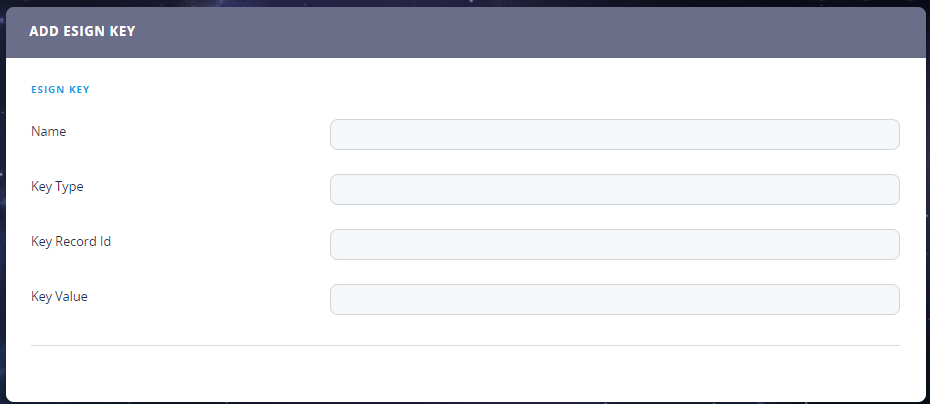
Name and Key Type are not relevant for the flow to work, but will help you organize your records.
The most important attribute is Key Value and is the value described above.
The key is provided by Namirial when you configure the Automatic Remote Signature Profiles. More than one profiles can be set, depending on the needs.
Auto Profile Case 1
If there is only one automatic profile set in Namirial, then you can fill in only the Name and Key Value for that profile.
In The Processor Setting field the configuration will look like this:
"signatureType":"AutomaticSign",
         "automaticProfile":{
            "attributeKey":""
         }
Auto Profile Case 2
If there is more than one automatic profile set in Namirial then we will fill in all fields Name, Key Record Id and Key Value for that profile. The Key type is for you to fill in to know from where that Key Record Id is from. (e.g. In the Key Type you can fill in systemuser if the Key Record Id is the id of the user).
In The Processor Setting field the configuration will look like this:
"signatureType":"AutomaticSign",
         "automaticProfile":{
            "attributeKey":"userId"
         }
For example:
If you have more users from FintechOS with the right to sign automatically, then the configuration is like this:
userId: will be then name of the attribute from your entity that stores the userid from FintechOS.
In FTOS_DFP_ESignKey, the Key record id will be the id of the userid form the systemuser table.
Auto Profile Case 3
You can set other tables (e.g. CustomProfileTable) for your profiles, apart from systemuser. This means that the Key record id will be the id from the record form that table, and yourAttribute_From_EntityName: will be the name of the attribute from your entity that stores the Record ID from the table created.
(In the Key Type you can fill in CustomProfileTable)
Example:
"signatureType":"AutomaticSign",
         "automaticProfile":{
            "attributeKey":"yourAttribute_From_EntityName"
         }
yourAttribute_From_EntityName= CustomProfileTableId (the lookup from your entity to the CustomProfileTable for example or just an attribute that stores that RecordId).
This way the system will know witch Automatic Profile to use to sign.
Upgrade Application Configuration
1 Import Again Packs
Import in Deployment Package the packs from the Pack received.
2 Modify data
Using the example, please adapt your processors settings with the new structure found in the new examples.
The Pkg08_ESignProcessor_01_FlowSetting_Example_v1.0.xml.zip from ..\02 ConfigurationDataDeploymentPackages from DevOps -> Configuration data deployment package.