Managing Seasonal Campaigns
Seasonal campaigns enables you to create product bundling campaigns that resonate with the sentiments your customers have around that time of the year.
The seasonal campaigns provides you with the following key advantages:
- Increase brand awareness among customers
- Enhance chances to convert one-time customers into loyal customers
- Boost profit in an otherwise quiet period.
FintechOS enables you to go a step further, split your seasonal campaign into various instances. This is particularly useful if you want to offer different levels of promotional discounts at different times during the seasonal campaign (e.g. offer higher discounts the last 2 days prior the winter campaign ends).
Add seasons
To add a season, follow these steps:
- Click the main menu icon at the top left corner.
- In the main menu, click Business Automation> Omnichannel Campaigns > Seasons. The Seasons List page appears.
- Click the Insert button at the top right corner of the page. The Add Season page appears.
- Type the Name of the campaign type (e.g. Winter).
- Type in the Description for the season.
- If you want to split your seasonal campaign into instances, click the Save and reload button at the top right corner of the page. The Edit Season page appears. To add an instance:
- In the Instances section, click the Insert button. The Add Season Instance page appears.
- Type a Year and Name . Select the season instance Start Date and End Date.
- Click the Save and Close button at the top right corner to save the campaign subtype. The Name of the instance is automatically set as the concatenation of the season name and the instance year.
- Click the Save and Close button at the top right corner to save the season settings.
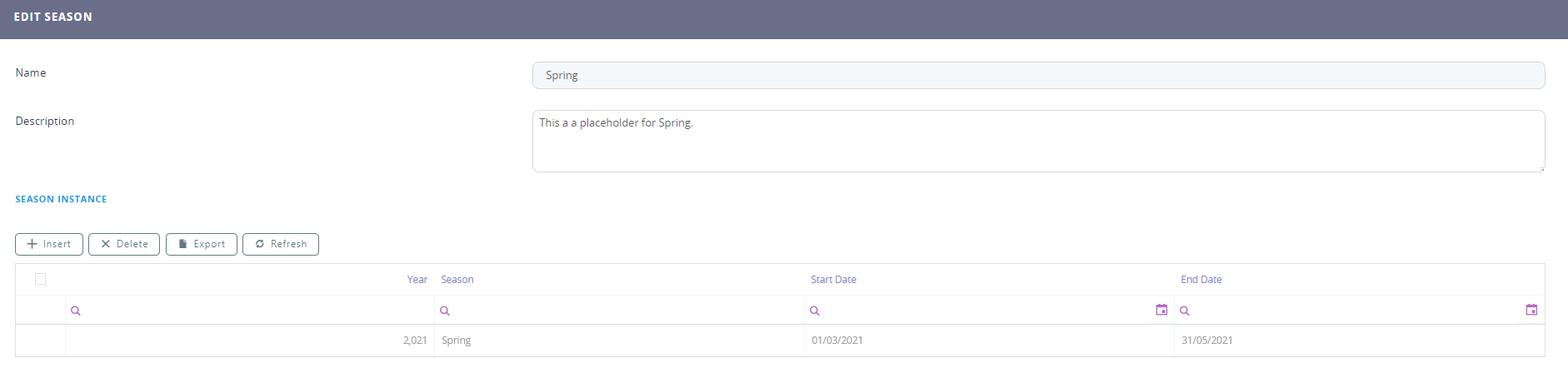

Follow this procedure to add as many season instances as you need.
Edit seasons
To edit a season, in the Seasons List page, double-click the record that you want to edit. The Edit Season page appears.
You can edit the name, description and also add, edit or delete season instances (if any), then click the Save and Close button at the top right corner to save the changes.
Delete seasons
To delete a campaign type, in the Seasons List page, select the desired record and click the Delete button at the top right corner of the page. A confirmation dialog appears. Click Yes to delete the selected record.