Defining Status Reasons Template
Here, a status reasons template is defined using the status reasons created in the Add Status Reason page. To add a new status reason template, in the Innovation Studio main menu, go to Automation Blocks> Omnichannel Campaigns > Reasons Templates. The Status Reasons List page appears. Select a template from the list or create a new one.
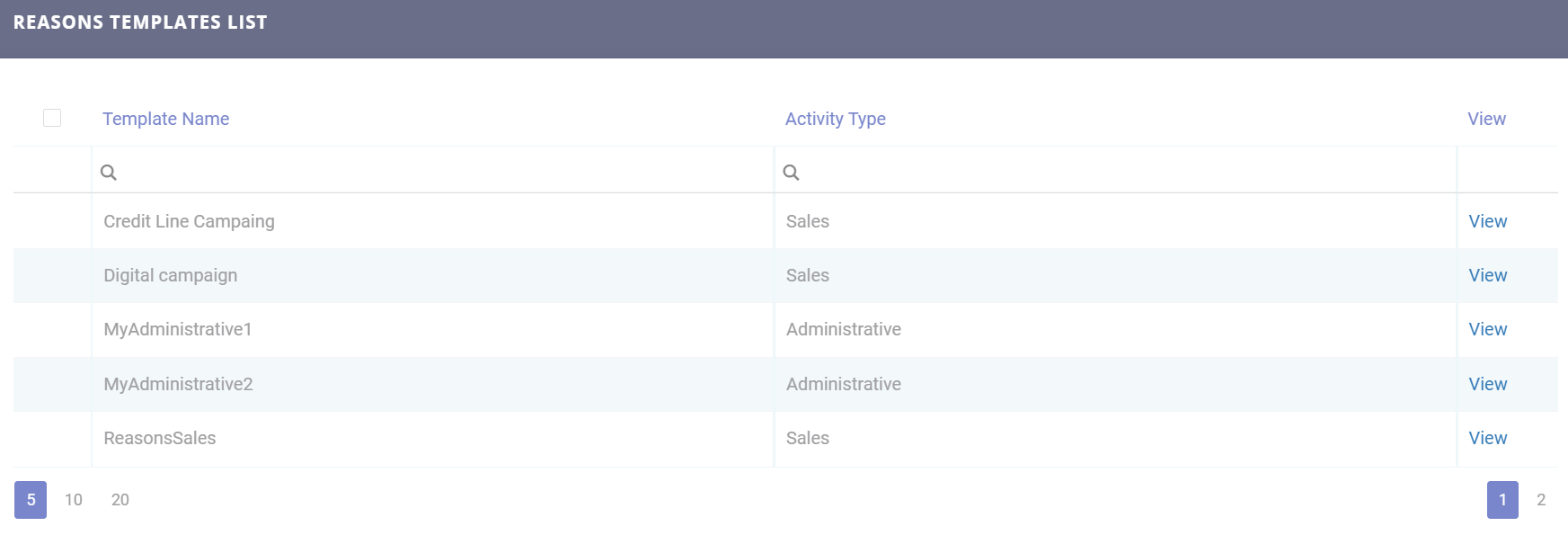
Fill in the following fields:
| Field | Required | Type | Description |
|---|---|---|---|
| Activity Type | Yes | Option Set |
The campaign activity type. The following options are available:
|
|
Stage |
No |
Lookup |
The campaign stage. Select from the available records or add a new one. For details on adding campaign stages, see the Scheduling the Campaign in Stages page. |
|
Template Name |
Yes |
Text |
The template name. |
Click the Insert button from the right upper corner. The Add Status Reasons Templates page is displayed. Fill in the following fields:
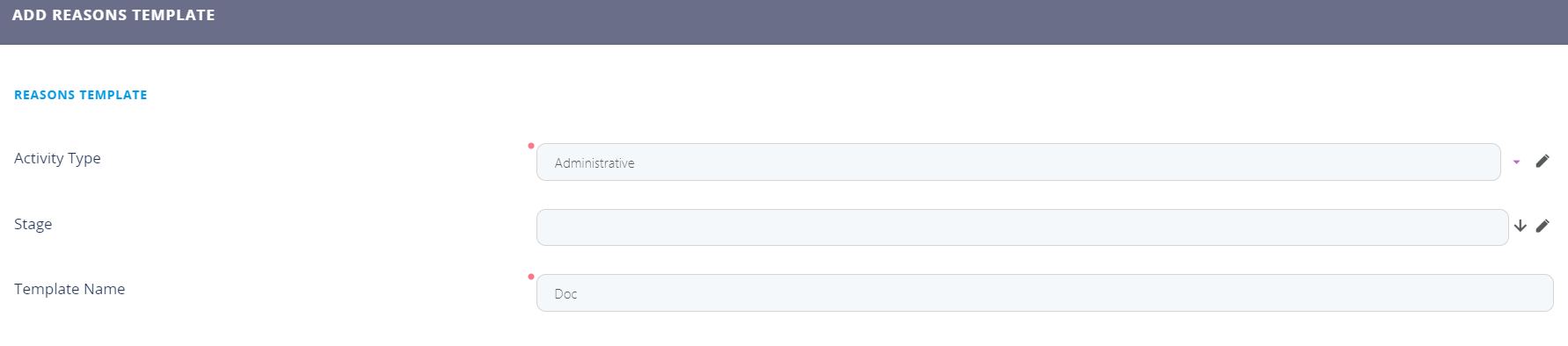
Click the Save and Reload button. The Used For Cancelled, Used For In Progress, and Campaign Stages sections are displayed.
Created templates are available for selection when defining a stage for internal campaigns, filtered by activity type.
Used for Cancelled Status Reason Template
In this section the user can add Cancelled status reasons applicable for the current template.

Used for In Progress Status Reason Template
In this section the user can add In Progress status reasons for the current template.

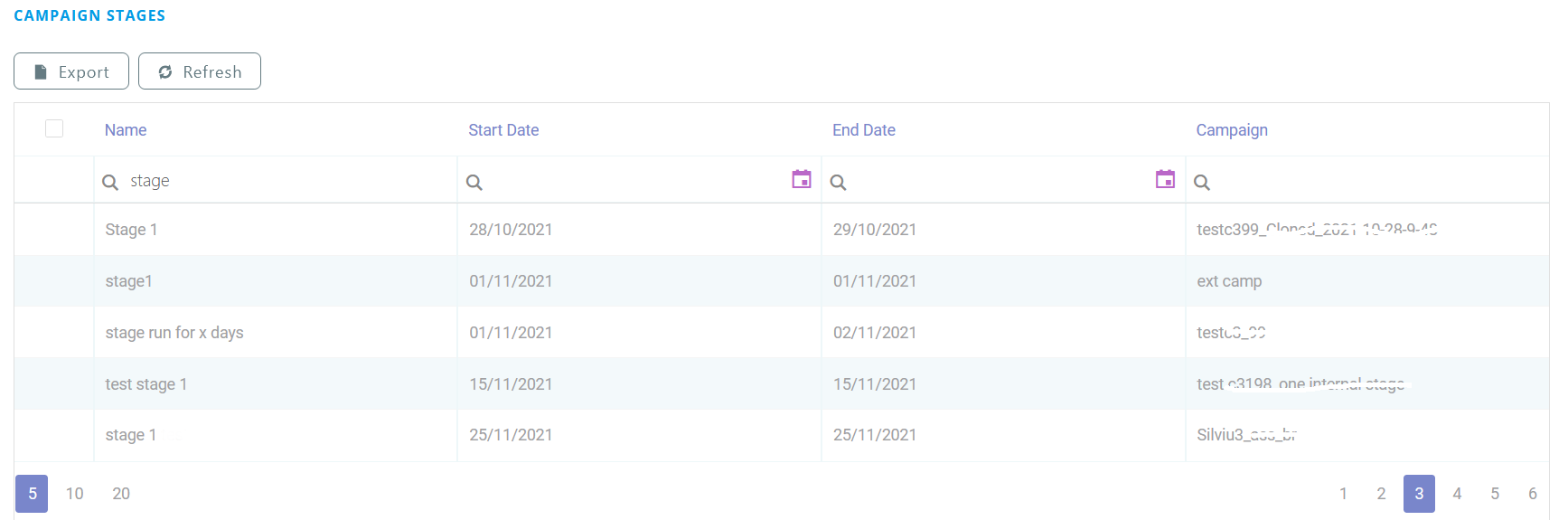
Campaign Stages
This section is displays the stages that have a certain reasons template set. The reasons template is selected at stage level and the reasons from that template are available when the campaign activities generated from that stage are set to In Progress or Cancelled.