Managing Campaign Types
Campaign types are a quick and convenient way of categorizing campaign data. E.g. campaigns for fall/winter season, Easter campaign, etc. Each campaign can be assigned a certain type (campaigns for fall/winter season, easter campaign, etc.) and subtype (mail, SMS campaign, etc.). Campaign types might contain multiple campaign subtypes.
Add campaign types and subtypes
To add a campaign type, follow these steps:
- Click the main menu icon (
 ) at the top left corner.
 - In the main menu, click Business Automation> Omnichannel Campaigns > Campaign Types. The Campaign Types List page appears.
- Click the Insert button (
 ) at the top right corner of the page. The Add Campaign Type page appears.
 - Type the Name of the campaign type (e.g. WinterSeason).
-
If you want to add subtypes to the campaign type, click the Save and reload button at the top right corner of the page. The Edit Campaign Type page appears. To add a subtype:
- In the Campaign Subtypes section, click the Insert button (
 ). The Add Campaign Subtype page appears.
 - Type a Name for the campaign subtype (e.g. Mail, Mobile).
- If you want to differentiate and decide between the importance of different campaign subtypes, select the campaign subtype Priority (high, medium, low or very low).
- Click the Save and Close button at the top right corner to save the campaign subtype.
- Click the Save and Close button (
 ) at the top right corner to save the campaign type.
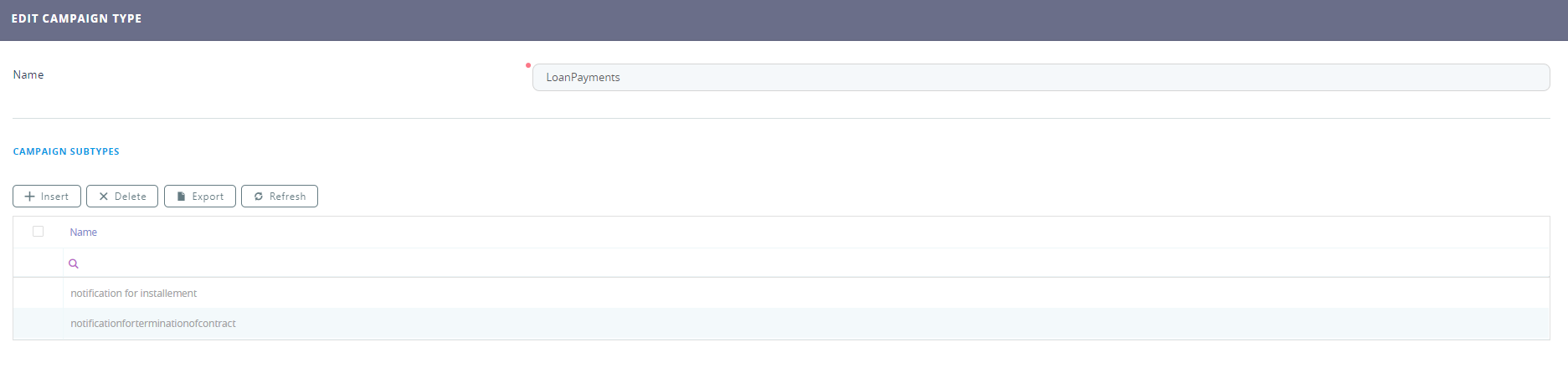

Follow this procedure to add as many campaign subtypes as you need.
Edit campaign types
To edit a campaign type, in the Campaign Types List page, double-click the record that you want to edit. The Edit Campaign Type page appears.
You can edit the name, description and also add, edit or delete campaign subtypes (if any), then click the Save and Close button () at the top right corner to save the changes.
Delete campaign types
To delete a campaign type, in the Campaign Types List page, select the desired record and click the Delete button at the top right corner of the page. A confirmation dialog appears. Click Yes to delete the selected record.