Contracts
Any agreement between a bank or a financial institution and a customer regarding the usage of a banking product is documented legally with a contract.
FintechOS Loan Management allows financial institutions to create banking product agreements (contracts) for their customers based on approvals. This is how Loan Management indicates the selling of a banking product, recording a contract to reflect the product and negotiated details within the origination process.
Contract Implementation Notes
-
The contract approval is made according to the specifications of the financial institution set during the implementation process.
-
The integration is done according to the financial institution's requirements.
-
The contract should be approved only after the advance is paid. This should be applicable for loan contracts with a stipulated advance amount or percent to be paid on the first disbursement day (for merchant loans), in order to avoid having to close newly created contracts if the process of collecting the advance and potential fees fails.
Managing Contracts
Loan Management enables you to manage contracts via the user interface or via integration through APIs. For information about the available endpoints, please visit the FintechOS Community.
For information about managing contracts via the user interface, continue reading this page.
To manage contracts:
-
In FintechOS Portal, click the main menu > Contract Management > Lending.
-
Click Loans to view all loan contracts or Settlement Accounts to view current accounts.
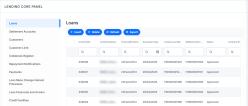
In the Lending page, you can add new contract records or search, edit, and delete existing ones in Draft status.

Loan Management has a series of buttons that help shorten the processes of managing contracts. Such actions aid you quickly streamline several processes. In the selected contract's page, in the top right corner, a series of buttons (depicted below in green) trigger different actions.

-
Button 1 is the Open Product Admin Configuration button. View the product admin configuration applicable to the banking product associated to a specific contract from the contract itself, clicking this button.
-
Button 2 is the Save and close button.
-
Button 3 is the Save and reload button.
-
Button 4 opens the Contract Business Workflow Transitions List.
-
Button 5 creates a new version of the existing contract. The new version has to be approved before the customer starts using it. If it is NOT approved, then the initial version can still be used.