Bank Account Transaction Operation
A bank account transaction is any money that moves in or out of a bank account. There are different types of operations that affect bank account transactions. The following types of bank account transaction operations are used in Core Banking:
-
Payment– usual transaction operation for a bank account transaction; -
PaymentIn– transaction operated into a bank account; -
PaymentOut– transaction operated from a bank account; -
RepaymentContract– transaction operation type used when a contract repayment is registered. In this case, Core Banking debits the current account of the customer and credits the internal bank account allocated to the banking product. This is an internal type of bank account transactions operation, used by Core Banking. -
Disbursement– transaction operation type used when a credit contract disbursement is registered. In this case, Core Banking debits the internal bank account allocated to the banking product and credits the current account of the customer. This is an internal type of bank account transactions operation, used by Core Banking. -
RecoverDebt– transaction operation type used for direct debit in case of loan credit. Core Banking automatically registers a debt for an installment for which the amount in the current account associated to the loan credit doesn't cover the debt amount. This is an internal type of bank account transactions operation, used by Core Banking.
Core Banking enables you to define the desired bank account transaction operations by managing the records within Innovation Studio's dedicated menu, Bank Account Transaction Operation.
To manage bank account transaction operations records:
-
Log into Innovation Studio.
-
Click the main menu icon at the top left corner.
-
In the main menu, expand the Product Factory menu.
-
Expand Bank Transaction Configurations menu.
-
Click Bank Account Transaction Operation menu item to open the Bank Account Transaction Operations List page.
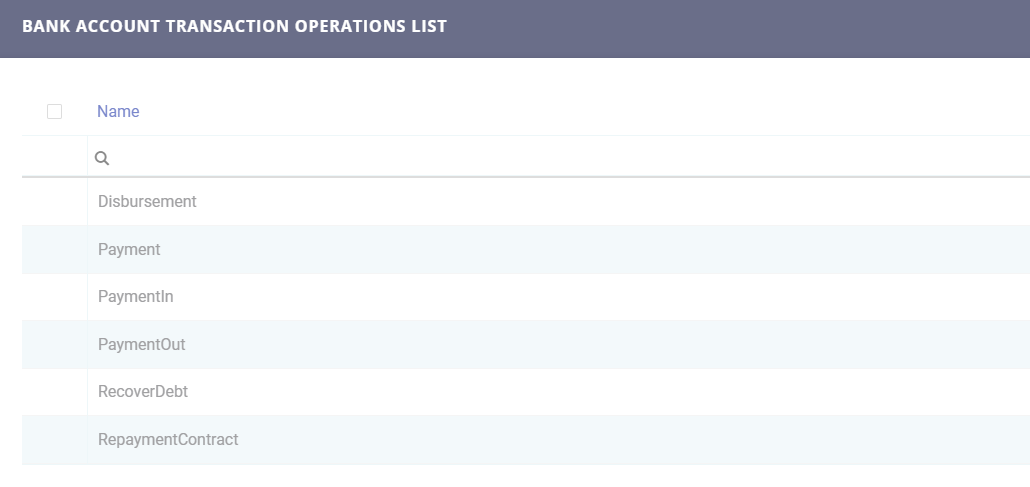
On the Bank Account Transaction Operations List page, you can:
-
Create a new bank account transaction operation record by clicking the Insert button at the top right corner.
-
Edit an existing bank account transaction operation record from the list by double-clicking it and editing the existing values in the fields.
-
Delete a record by selecting it and clicking the Delete button at the top right corner
-
Search for a specific record by filling in the column header of the displayed records list.
Creating Bank Account Transaction Operation Records
Follow these steps to create new bank account transaction operation records:
-
In the Innovation Studio, click the Insert button on the top right side of the Bank Account Transaction Operations List page. A page is displayed, allowing you to add the new record.


-
Fill in the following fields:
| Field | Mandatory | Data Type | Details |
|---|---|---|---|
| Name | No | Text | Enter the name of the bank account transaction operation record. |
| Code | No | Text | Enter a code for this transaction operation record. |
| Is Payment | No | Boolean | If the checkbox is selected, then the bank account transaction operation record represents a payment within Core Banking. |
| Is Top-Up | No | Boolean | If the checkbox is selected, then the bank account transaction operation record represents a top-up type payment. This field is displayed only if the Is Payment field is selected. |
| Allow Negative Bank Account Balance | No | Boolean | If the checkbox is selected, then the bank account allows the existence of a negative balance. This field is displayed only if the Is Payment field is selected. |
-
Click the Save and Reload button at the top right corner of the page.
A new section, Transaction Fee Items, is displayed after saving the record. Here you can attach multiple transaction fee items each serving a different purpose through filters (fees for payment to a specific country, fees made in a specific currency, fees for transfers having a certain minimum or maximum amount). Note that fees can also be combined in fee lists. You can add as many items as you need.
-
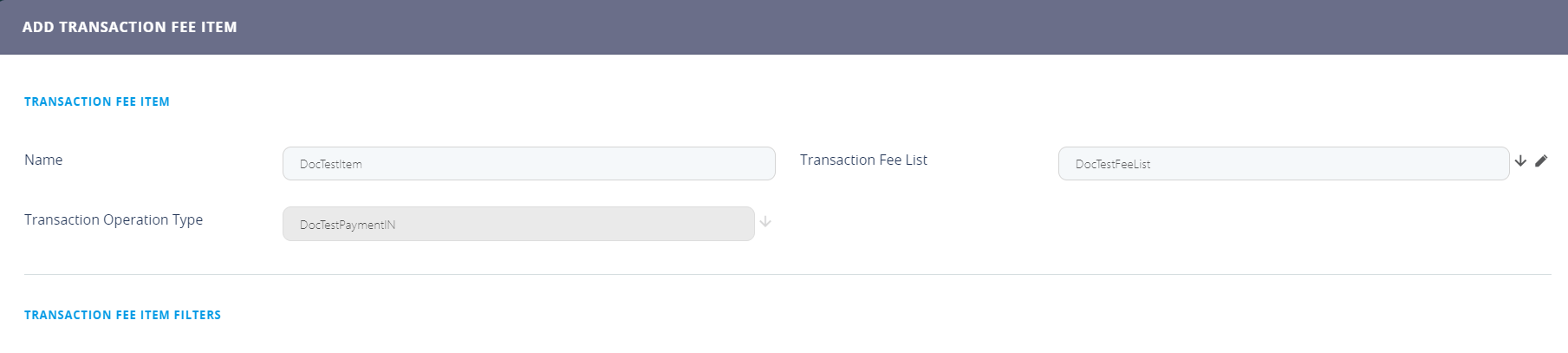
Click the Insert button within the Transaction Fee Items section to add a new item. The Add Transaction Fee Item page is displayed.
-
Fill in the following fields:
Field Mandatory Data Type Details Name No Text Enter the name of the transaction fee item record. Transaction Fee List No Lookup Select the transaction fee list associated to the transaction fee item. Transaction Operation Type No Lookup This field is automatically completed with the bank account transaction operation record being edited and it cannot be changed.
-
Click the Save and Reload button at the top right corner of the page.
A new section, Transaction Fee Item Filters, is displayed after saving the record. Here you can add filters for the transaction fee item. You can add as many item filters as you need.
-
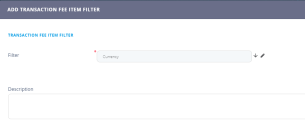
Click the Insert button within the Transaction Fee Item Filters section to add a new item filter. The Add Transaction Fee Item Filter page is displayed.

-
Fill in the following fields:
Field Mandatory Data Type Details Filter Yes Lookup Select the filter for the transaction fee item filter. Description No Text Area Enter a description for the transaction fee item filter.
-
Click the Save and Reload button at the top right corner of the page. A series of fields are displayed within the same page after saving the record.
-
Fill in the following fields in order to specify the filtering criteria for the transaction fee item filter:
Field Mandatory Data Type Details Text Value No Text Enter the text value of the filter if applicable. Value No Numeric Enter the starting value for the filter if applicable. Until Value No Numeric Enter the ending value of the interval if applicable. Date No Invariant Date Enter the starting date for the filter if applicable. Until Date No Invariant Date Enter the ending date for the interval if applicable. OptionSet No Option Set This field is automatically completed with the option set of the filter previously selected in the Filterfield if that filter is of option set type.Filter Entity No Entity This field is automatically completed with the entity of the filter previously selected in the Filterfield if that filter is of entity type.
-
Click the Save and Close button at the top right corner of the page.