Workflow Designer
The Workflow Designer is a graphical tool that simplifies business workflow creation enhancing productivity. It enables you to add workflow statuses and transitions by using drag and drop.
You can access the Workflow Designer from the Edit Business Workflow page, by clicking the Designer button.
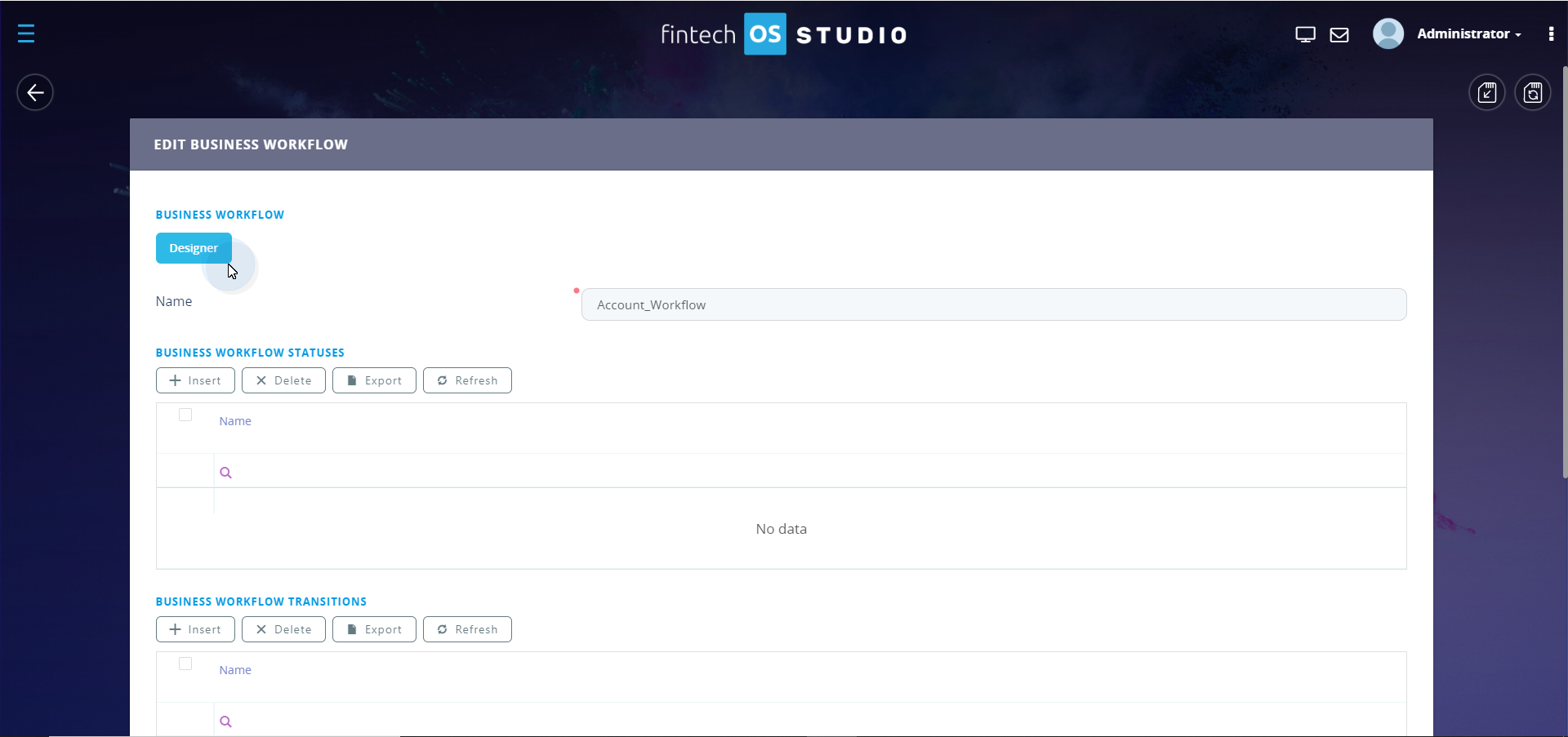
Workflow Designer Interface
The Workflow Designer provides a very user-friendly interface offering the means to add workflow statuses and transactions and easily update them.
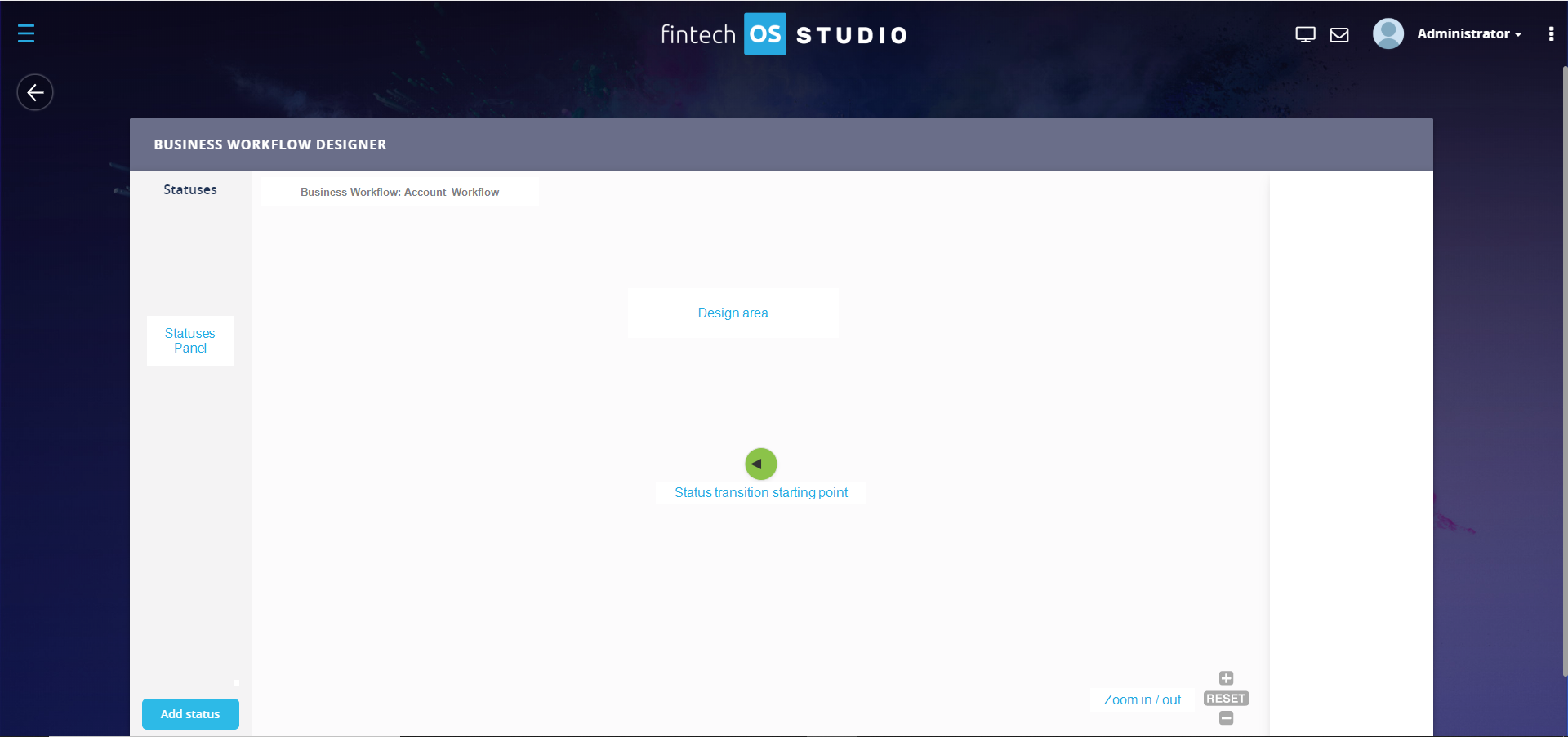
Statuses Panel
The Statuses Panel lists all the workflow statuses you add via the Workflow Designer or by using the Add Status button available at the bottom of the Statuses Panel
Design Area
The design area is the place where you design the business workflow. It contains the green filled circle that indicates the starting point of the business workflow. The workflow status connected to the green filled circle is the initial business workflow status.
The name of the business workflow is displayed as title of the Design Area.
Details Panel
The details panel displays basic details of the element (status or transition) selected in the design area and provides you with the means to edit and delete it.
Zoom in/out
At the bottom-right corner of the Design Area, the Zoom in/out feature is available.
 Related Topics