Step 3. Define Workflow Transitions
This section describes how to add a business workflow transition from the Business Workflow Statuses section:
- In the Edit Business Workflow page, scroll-down to the Business Workflow Transitions section and click the Insert button. The Add Business Workflow Transition page appears.
- Fill-in the following fields:
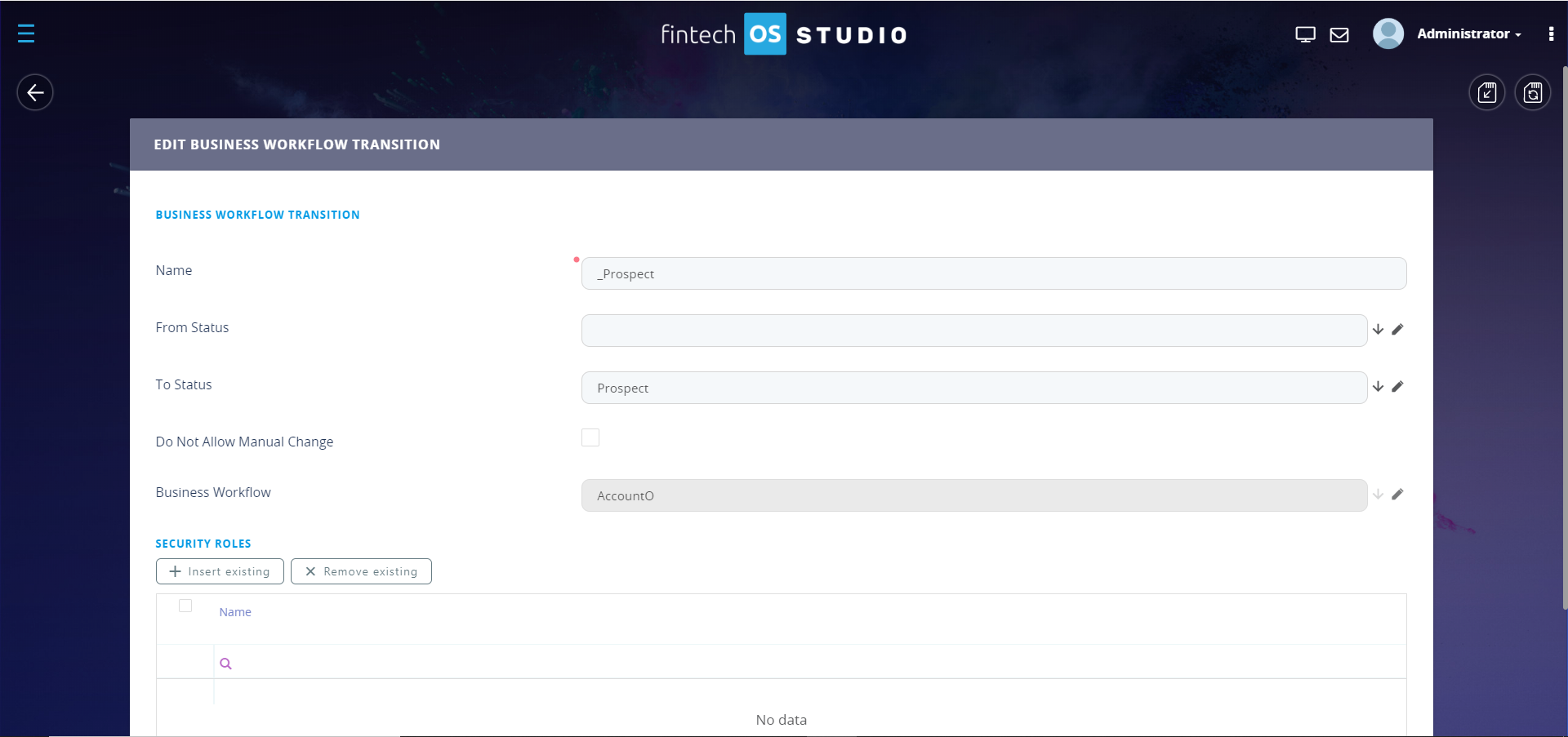
- From the From Status field, select the status from which the workflow transitions.
- From the To Status field, select the status to which the workflow transitions.
-
Tick the Do Not Allow Manual Change checkbox if you want the workflow transition to be automatically triggered based on strict business rules.
The Name field is automatically filled in with the concatenation of the names entered in the From Status and To Status fields. If this is the initial workflow transition it follows the following naming convention: "_ToStatus".
The Business Workflow field is a non-editable and displays the name of the business workflow for which you define the transitions.
- If you allowed manual changes (ticked clear the Do Not Allow Manual Change checkbox) and want all users to manually perform the workflow transition, skip steps 7 and 8, go to step 9.
- If you want only users with specific security roles to perform the business status transition, click the Save and Reload icon at the top-right corner of the page. The Edit Business Workflow Transition page appears
- To add a specific security role, from the Security Roles section, click the Insert existing button and from the pop-up that appears, double-click the security role. Repeat this step to add as many security roles as your business requires.
- Click the Save and Close button (
 ) at the top right corner of the page.
Follow the procedure above as many times as business status transitions you need to meet your business needs.
After you define all the business workflow transitions, if you some business transitions will be automatically triggered by specific rules, you need to define the workflow rules.
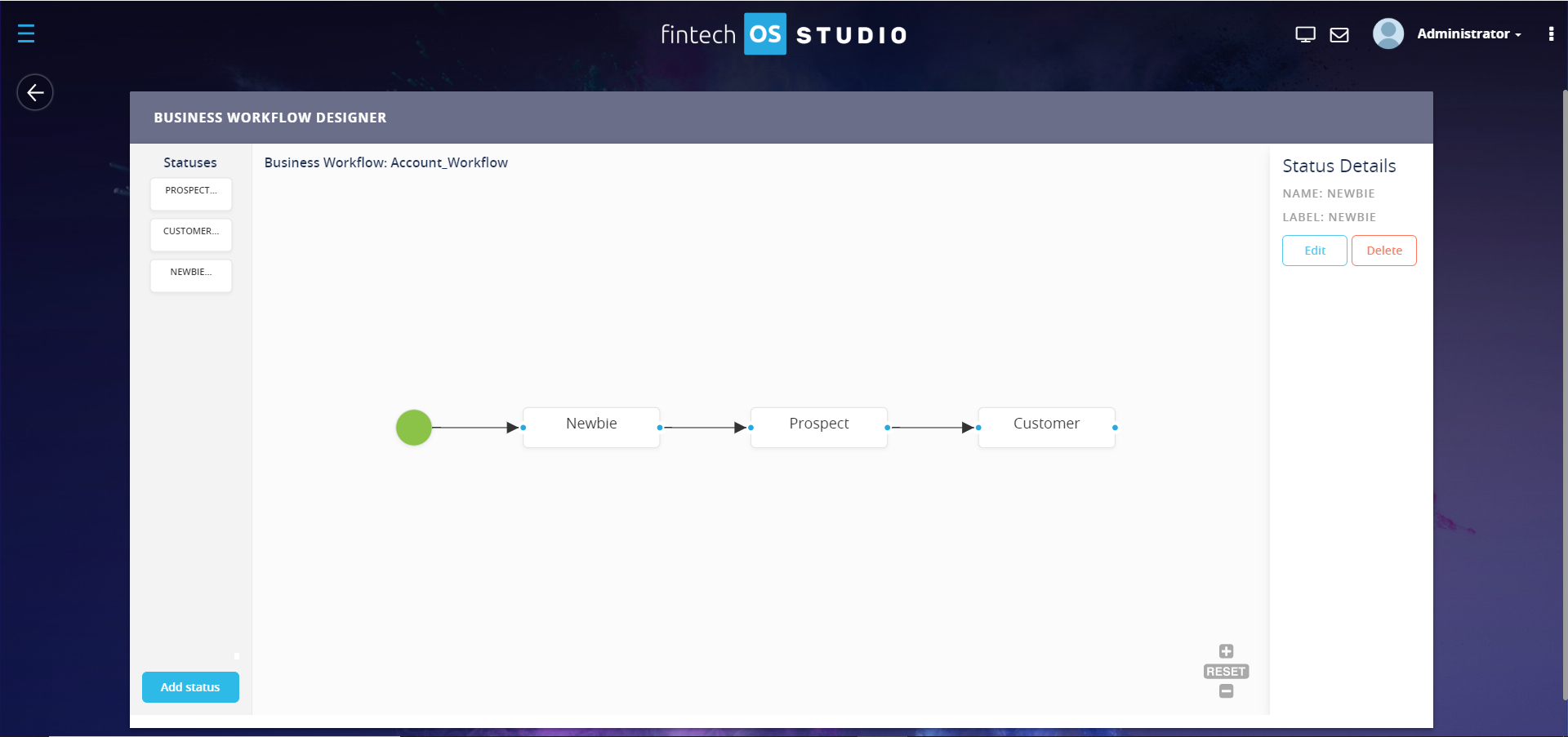
If you want to visually see the workflow statuses and transitions, in the Edit Business Workflow page, click the Designer ( ) button. The Workflow Designer appears. The figure below provide an example of how a business workflow might look like in the Workflow Designer.