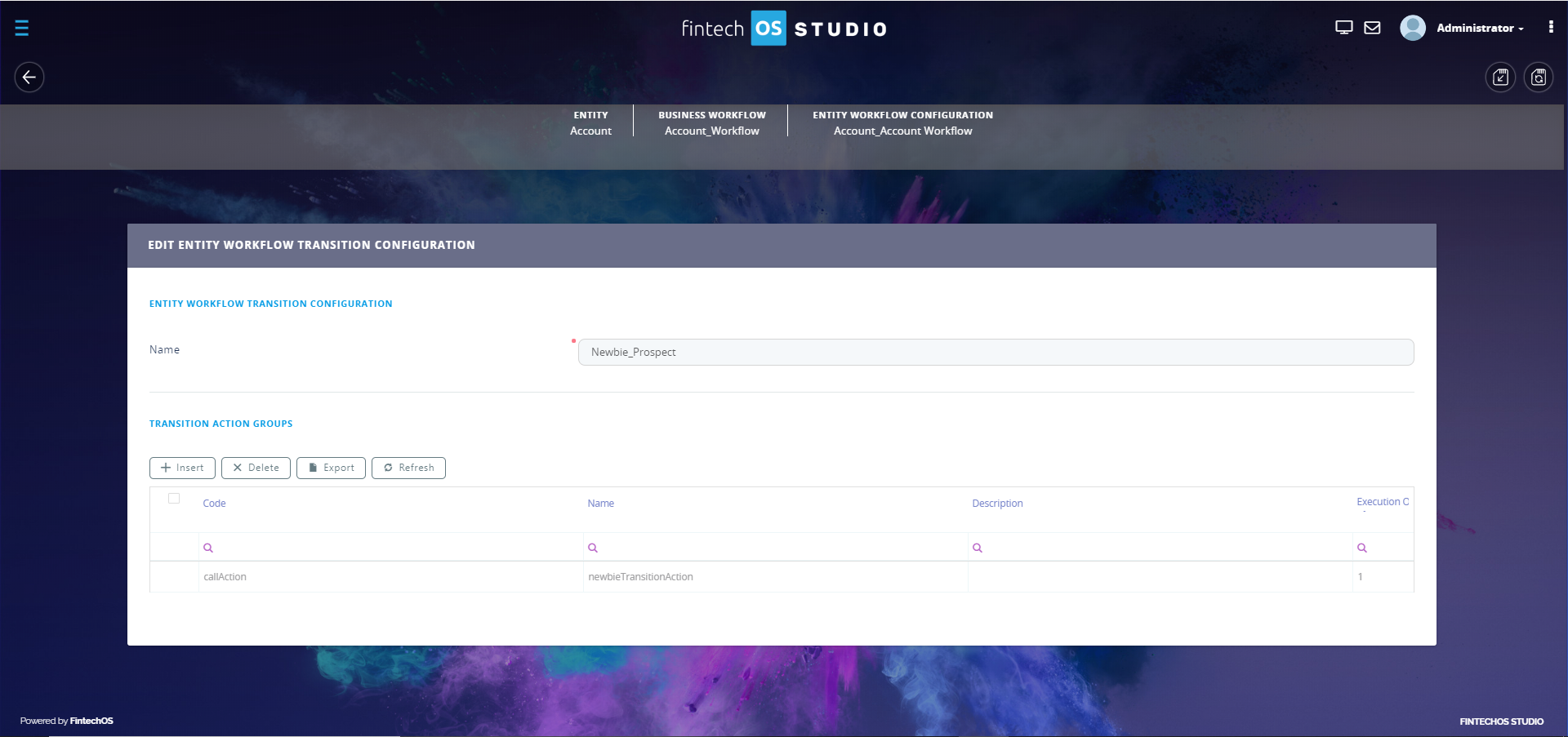
Edit Workflow Transition Configuration
You can add specific actions to be performed before or after status change by editing the workflow transition configuration:
Step 1. Add action group
- In the Business Workflows Configurations List page, from the Entity Workflow Transition Configuration section, double-click on the transition configuration you want to edit. The Edit Workflow Transition Configuration page appears.
- In the Transition Action Groups section, click the Insert button. The Add Transition Action Group page appears.
- Enter the Name of the action group which will be used by the system.
- At the top-right corner of the page click the Save and Reload icon. The Edit Transition Action Group page appears.
- Add actions to be performed on workflow transition. For information on how to do it, see .before, after or before and after business workflow status change by adding actions in the Entity Workflow Transaction Actions Before section, respectively Entity Workflow Transaction Actions Before section, or both. The procedure for adding actions is the same for both before and after transaction. For information on how to add a workflow transaction action, see
- After you add the actions that you need, at the top-right corner of the page click the Save and Close icon
Step 2. Add workflow transaction actions
You can add before, after or before and after business workflow status change by adding actions in the Entity Workflow Transaction Actions Before section, respectively Entity Workflow Transaction Actions Before section, or both. The procedure for adding actions is the same:
- Click the Insert button from the section corresponding to when you want the action to be performed (before or after status change). The Add Entity Workflow Transition Action page appears.
- Enter the Name of the action to be used by the system.
- Tick the Apply Always checkbox to ensure business consistency,
- Select the Action Type from the following available values:
- Go to Business Workflow Status. You have to select the Business Workflow Status to which the workflow transitions.
- Call Processor
- Custom Script. You have to enter the script Code to be executed on workflow transition.
- Validate Condition. You have to enter the Error Message to be displayed if the business condition fails.
- Click the Save and Reload button (
 ) at the top right corner of the page.
 - Add as many actions as you need, then add the business conditions which if met will trigger specific action execution.
Step 3. Add action business condition
- In the Edit Transition Action Group page, scroll-down to the Action Business Conditions section and click the Insert button. The Add Action Business Condition page appears.
- Enter the Name of the action business condition to be used by the system.
- Select the Business Condition from the list of previously added business conditions.
- Select the Required Evaluation Value. If you want the action to be run if the business condition is met, select True; otherwise select False.
- Click the Save and Reload button () at the top right corner of the page.