Define Workflow Transition Approvals
- In FintechOS Studio, click the main menu icon (
 ) at the top left corner.
 - In the main menu, click Fintech Automation > Business Workflows > Business Workflow Configurations. The Business Workflow Configuration List page appears.
- Double click business workflow you wish to edit.
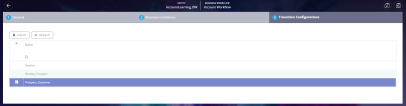
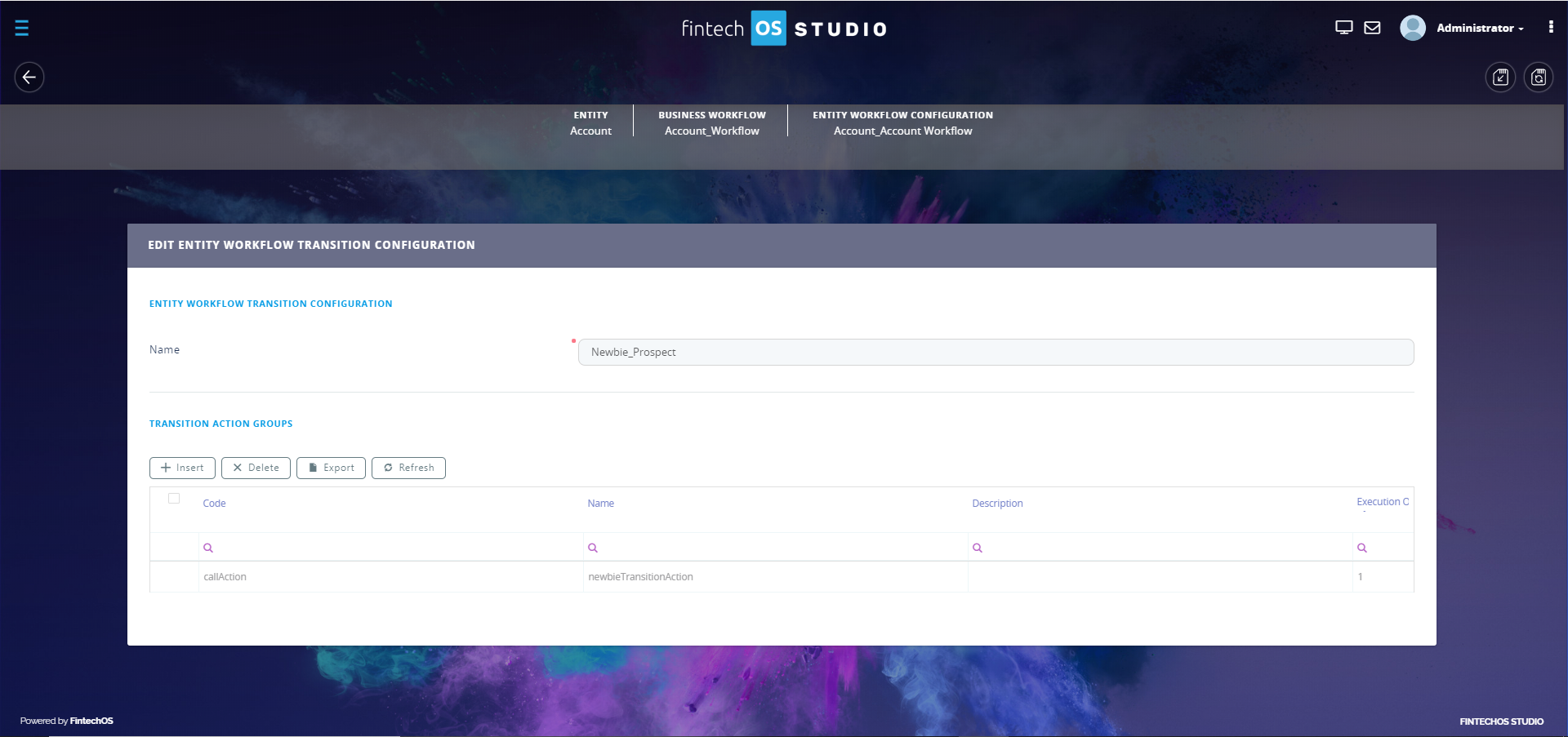
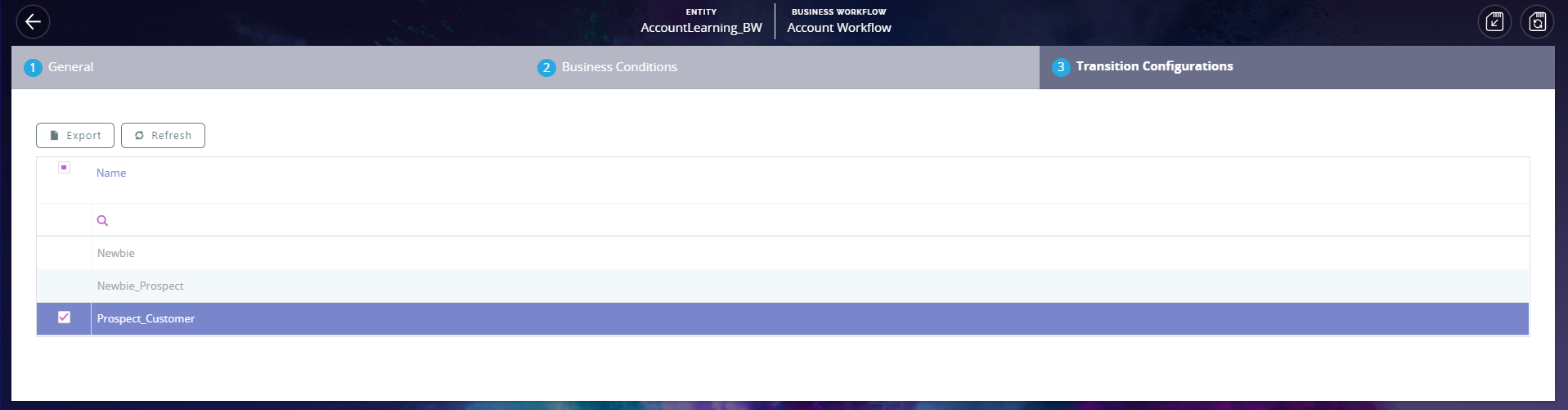
- In the page that opens, select the Transition Configurations tab and double click the workflow transition you wish to go through an approval process.
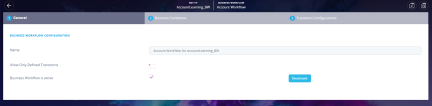
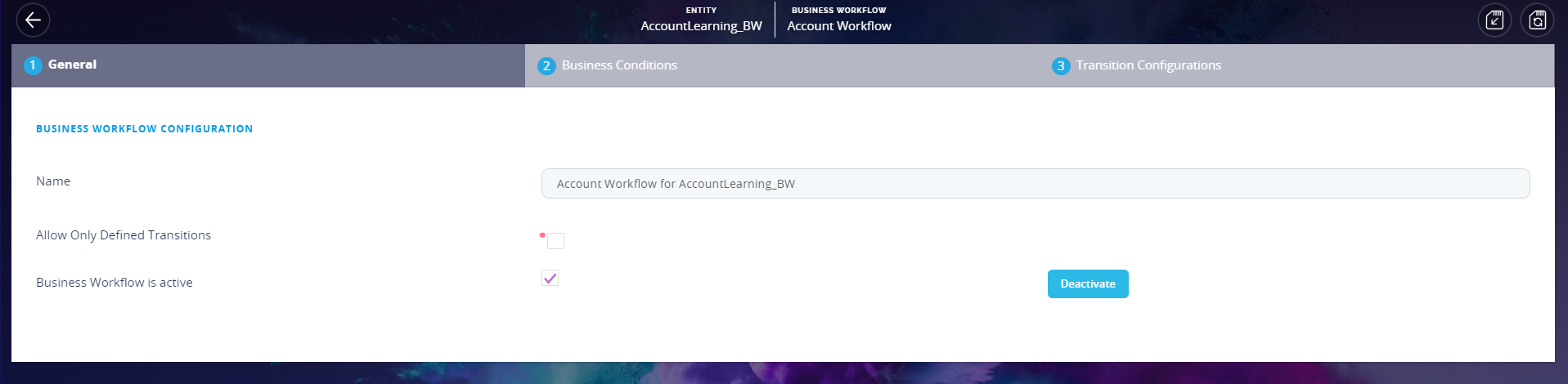
- In the General tab of the workflow transition, select the Allow only defined transitions checkbox, if you wish to limit the transitions to the specific transitions. Tick the Business Workflow is active, if you wish to activate the workflow on that entity or digital journey. Click on the button Deactivate, to deactivate the workflow on an entity or digital journey.
- Click the Save and Reload button (
 ) at the top right corner of the page.
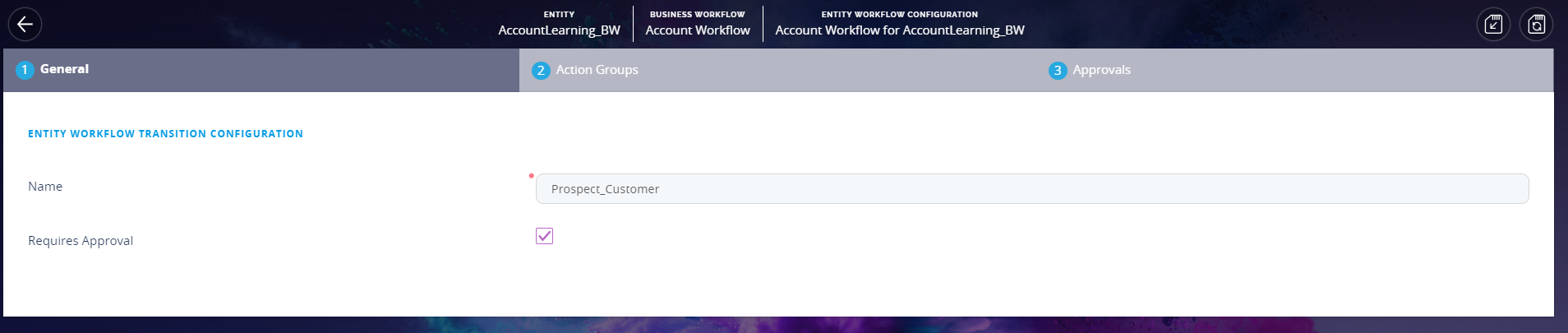
 - Select the Transitions Configurations tab and double-click on the transition for which you wish to insert an approval. Tick the box ''Requires Approval''.
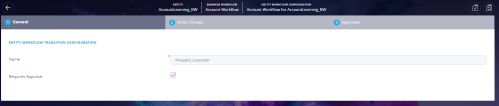
- Click the ''Save and reload'' button.
- Open the 3. Approvals tab to fill in the approval's details by clicking ''Insert''.
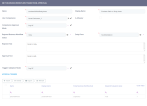
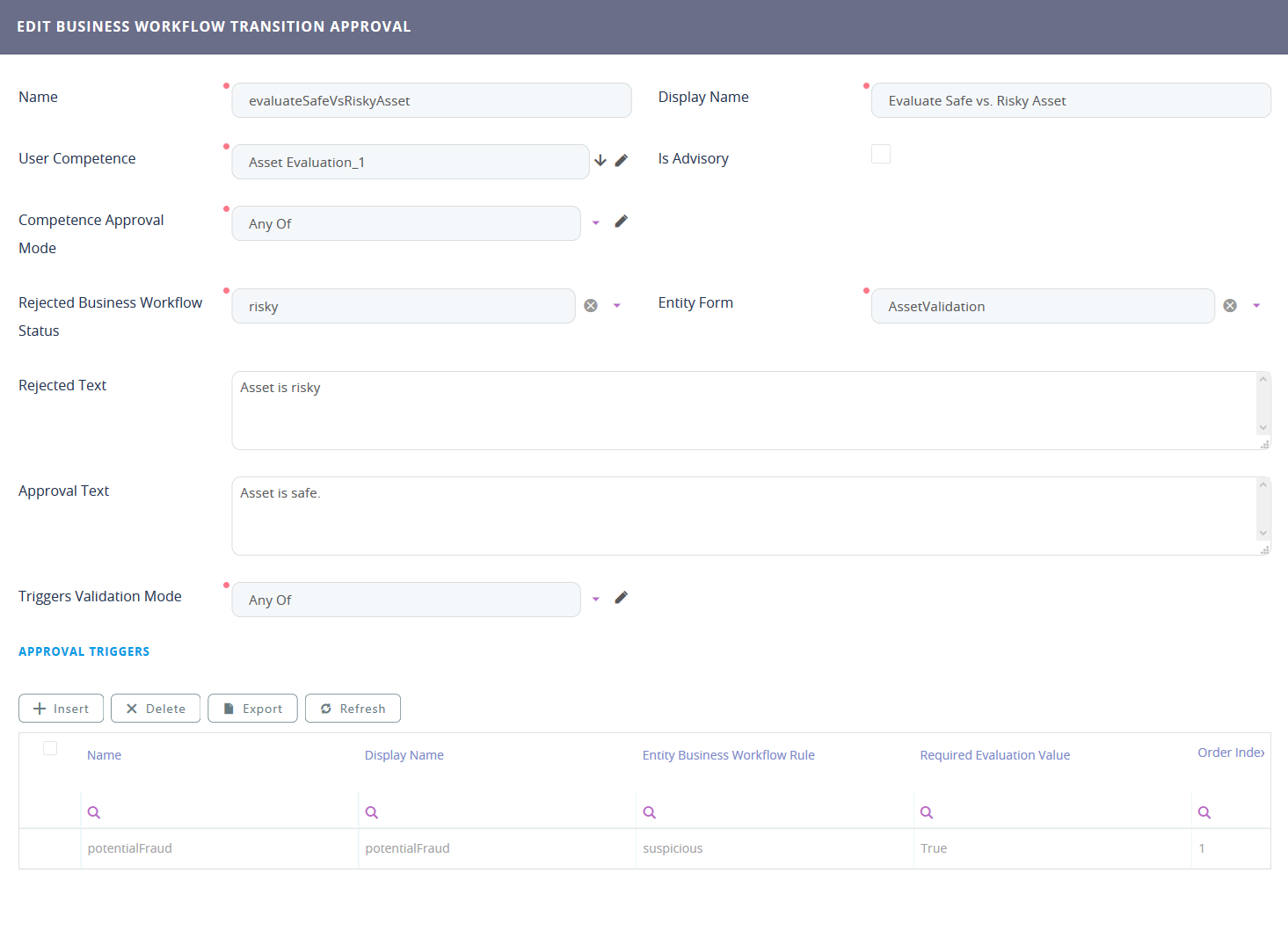
Field Desctiption Name This name uniquely identifies the workflow transition approval in the system. Display Name This is how the workflow transition approval will be displayed in the user interface. User Competence User competence of the person approving the transition. For details, see Define User Competences. Is Advisory Check if the approval is only advisory. If an approval is advisory, the status change will take place even if the approver rejects the transition, but the rejection will be logged in the business workflow transitions list. Competence Approval Mode - Any Of – If any of the users with the designated competence approves the transition, the transaction passes.
- All – All the users with the designated competence must approve the transition before it passes.
Rejected Business Workflow Status Alternate workflow status to be applied if the transition is rejected. Entity Form Context (entity form or form driven flow) in which the workflow transition triggers the approval process. Rejected Text Text message to be displayed on screen if the transition is rejected. Approval Text Text message to be displayed on screen if the transition is approved. Triggers Validation Mode - Any Of – The transition requires approval if any of the approval triggers matches.
- All – The transition requires approval if all the approval triggers match.
- Click the Save and Reload button () at the top right corner of the page.
- In the Approval Triggers section, add any business conditions that have to be met to trigger the approval. If this section remains empty, the workflow transition will always require approval.
Repeat the process for any additional approvals you wish to add.