Discounts
Banks can offer discounts of any nature for any banking product. You can either select an existing discount or create a new one.
To add a new discount, follow these steps:
- Log into Innovation Studio in Developer mode.
- Click the main menu icon at the top left corner.
- In the main menu, expand Product Factory-> Banking Product Dimensions.
- Click Discounts to open the Discounts List page.
Here you can add a new discount by clicking the Insert button, or delete an existing discount by clicking the Delete button on the right. - Click Insert and fill in the following fields:
Field Required
Data Type Details Name
Yes
Text
Insert the appropriate name for the discount.
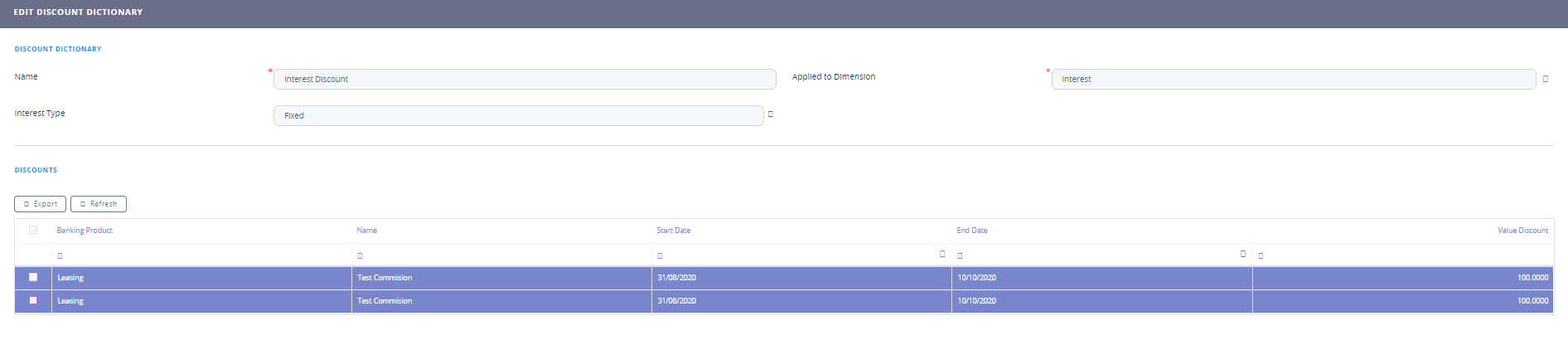
Applied to dimension Yes Option set Select one of the dimensions:
- Interest
- Commission
- Insurance.
Interest Interest Type Yes Option set Select one type from the list. Interest No Option set Select the exact interest configured in the Interests menu. Commission Commission Type Yes Option set Select one type from the list. Commission No Option set Select the exact commission configured in the Commissions menu. Insurance Insurance Class Yes Option set Select one from the list. Insurance No Option set Select the exact insurance configured in the Insurance menu. - Click the Save and Reload button at the top right corner of the page.
- In the Discount section, the products where the discount is attached is displayed. If it is empty, there is no banking product associated.
- Click the Save and Close button at the top right corner of the page.